
How to Download & Set Up IP Camera Viewer App?
In an era where security is paramount, the ability to monitor your property in real-time is invaluable. Whether you want to secure your home, office, or commercial establishment, using an IP Camera Viewer App is one of the most effective ways to manage your security cameras. The IP Camera Viewer App provides a simple, convenient, and reliable way to view live camera feeds, review recorded footage, and receive real-time motion alerts. In this guide, we will walk you through how to download the IP Camera Viewer App, set it up, and make the most of its features.
What Is the IP Camera Viewer App?
The IP Camera Viewer App is a mobile application designed to connect and manage your IP cameras and network video recorders (NVRs). The app allows you to view live feeds from your security cameras, control settings, and even play back recorded footage directly from your phone or tablet. It supports a wide variety of camera brands and models, including popular ones like Hikvision, Dahua, Amcrest, and more.
In addition to monitoring live video, the app enables users to receive motion detection alerts, allowing for proactive security management. The app is optimized for Android devices, including smartphones, tablets, and Android-powered TVs, offering flexible viewing options.
This guide will teach you how to download the app, install it, and take full advantage of its functionalities for enhanced surveillance.
Why Use the IP Camera Viewer App?
Before diving into the step-by-step instructions, let’s quickly discuss why you should consider using the IP Camera Viewer App:
1. Remote Monitoring
The ability to monitor your property remotely is a major benefit of the app. Whether you're on vacation, at work, or running errands, the app allows you to stay connected to your security cameras no matter where you are. This feature provides a sense of security and peace of mind.
2. Easy Setup
Downloading and setting up the app is quick and simple. The user-friendly interface and step-by-step setup process make it easy for anyone to start using the app, regardless of their tech experience.
3. Motion Alerts and Notifications
The app features motion detection capabilities. When motion is detected, you will receive immediate notifications on your phone, enabling you to respond quickly to any suspicious activity.
4. Playback Functionality
In addition to live streaming, the app lets you access recorded footage, allowing you to review past events. This feature is particularly useful for security audits or investigations after an incident.
5. Multi-Device Compatibility
The IP Camera Viewer App is optimized for Android smartphones, tablets, and TVs, making it a versatile option for anyone looking to keep an eye on their security system, whether at home or on the go.
Now that we understand the value of the app, let’s dive into the process of downloading it.
Step-by-Step Guide to Download IP Camera Viewer App
Step 1: Ensure Compatibility
Before you start the download process, it's essential to ensure that your device is compatible with the IP Camera Viewer App. The app is designed for Android devices, including smartphones, tablets, and Android-powered TVs or TV boxes. It’s available on the Google Play Store and works well with most Android versions.
To check compatibility:
Smartphones/Tablets: Make sure your device is running Android 5.0 Lollipop or higher.
Android TV: Ensure your device has access to the Google Play Store and is powered by Android OS.
Step 2: Access the Google Play Store
The IP Camera Viewer App can only be downloaded through the Google Play Store. If you don’t already have the Play Store installed on your device, you’ll need to obtain it first. Most Android devices come preloaded with the Google Play Store, but if not, you may need to install it manually.
To begin the download:
Open the Google Play Store app on your Android device.
In the search bar at the top, type “IP Camera Viewer” and press Enter.
Step 3: Select the Correct App
Once you’ve searched for the app, you’ll see a list of results. The official app will usually be listed at the top. The name of the app is “IP Camera Viewer” (created by Hikvision or Developer Name). Ensure the app you're selecting matches the developer name, as this will ensure you're downloading the legitimate version.
Step 4: Download the App
After selecting the IP Camera Viewer app from the search results:
Tap on the app’s listing.
You’ll be taken to the app’s page, where you can read more details about its features and functionality.
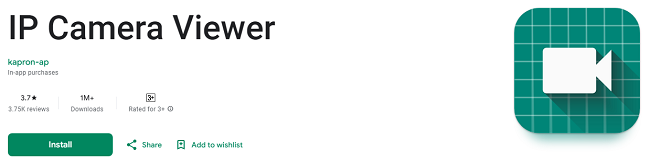
Tap the “Install” button to begin the download.
The download process will begin, and depending on your internet connection, it should take only a few seconds to a couple of minutes to complete. Once the app is downloaded, the Install button will turn into Open.
Step 5: Install and Set Up the App
Once the app has been downloaded and installed, the next step is setting it up for use. Follow the simple instructions below to get your IP Camera Viewer app up and running.
1. Open the App
After the installation is complete, tap the “Open” button on the app page in the Play Store, or find the app on your home screen and tap to launch it.
2. Create an Account or Sign In
Upon opening the app for the first time, you may be prompted to create an account. Some versions of the app require an account for cloud features, while others may allow you to use it without one. If you already have an account with the camera brand or NVR system you’re using (e.g., Hikvision, Dahua), simply sign in using your existing credentials.
3. Add Your Camera
Once you're signed in (or skipped the account creation process), you’ll need to add your security cameras. This process can vary depending on whether you're using a single IP camera, multiple cameras, or a Network Video Recorder (NVR).
To add a camera:
Tap the “Add Camera” button within the app.
Enter the IP address, username, and password of your camera (usually provided in the camera's manual or app settings).
If the app detects the camera on your local network, it may automatically fill in some of this information.
For more advanced setups (such as adding multiple cameras), the app may require additional information, including port forwarding settings or camera model-specific configurations.
4. Configure Camera Settings
Once the camera is added, you can customize the settings:
Adjust resolution and frame rate for optimal viewing.
Enable motion detection to get alerts on your phone whenever movement is detected.
Set up storage options for saving footage, either on your device or a connected cloud service.
5. Start Viewing
Once your camera is successfully added, you can begin viewing live video streams. You can switch between cameras or view multiple feeds simultaneously, depending on your setup.
Step 6: Advanced Features
The IP Camera Viewer app isn’t just for live viewing—it also offers advanced features to enhance your security experience.
1. Motion Detection Alerts
Set up motion detection notifications so that you’re instantly notified whenever your camera detects motion. You can adjust the sensitivity level to prevent false alerts while ensuring that significant movement triggers an alert.
2. Video Playback
You can access and review recorded footage directly from the app. Simply select the camera, and choose the date and time range of the footage you’d like to review. This feature is crucial for security investigations or simply checking past events.
3. Cloud Backup
Some versions of the app support cloud storage for recorded footage, allowing you to back up your videos securely. This ensures that footage isn’t lost even if your camera or device is damaged.
4. Multi-Camera Support
For users with multiple cameras, the app allows you to monitor several cameras simultaneously, providing a comprehensive view of your security setup.
Conclusion
Downloading and using the IP Camera Viewer App is a straightforward process that can significantly enhance your home or business security. By following this step-by-step guide, you can easily download the app from the Google Play Store, set up your cameras, and take full advantage of its features like live video streaming, motion detection alerts, and video playback.
The app’s compatibility with most IP cameras, ease of setup, and real-time monitoring capabilities make it an invaluable tool for anyone seeking to keep their property safe. Whether you are at home, on vacation, or at work, the IP Camera Viewer App ensures that your security system is always at your fingertips.
Updates